Open media

The Scheduler brings your routines together: turn on a light at sunset, change a thermostat mode on weekday mornings, run an automation program, or ask an AI Genie to carry out a task at a chosen time.
Each event describes when it is active. You can associate devices with it, add actions, or use it as a named schedule from an automation program. Start with the calendar wizard for everyday routines, and use enhanced cron expressions when you need to combine times, date ranges, or other events.
For a simple evening-light routine:
The scheduler uses the HomeGenie server's local time. The page displays that time so you can check it when working from a browser in another time zone.
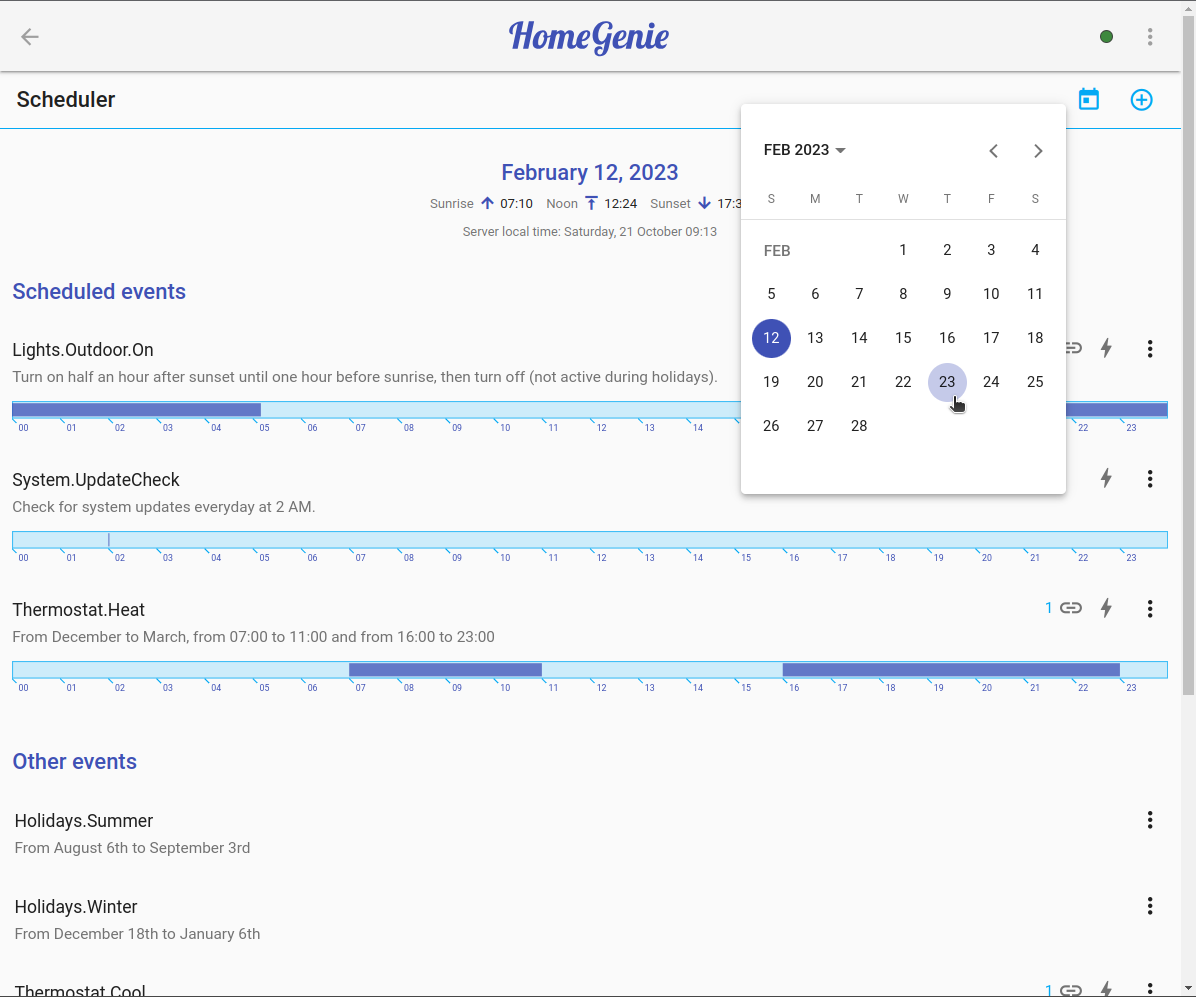
The event list follows the day selected with the calendar button in the title bar. It separates:
Change the preview date to inspect a future day without changing an event's schedule.
Each item in the list displays the event name, description and a time bar showing occurrences of the event over a 24-hour period.
On the right side of each item there is a menu button that can be used to edit, toggle or delete the event.
If the event also triggers an action, the action icon will appear next to the menu button.
The link icon will show the number of devices associated with the event.
Click the Add event button to open the wizard. The same wizard opens when you edit an existing event.
Work through the schedule, associated modules, and action. An action is optional: an event can simply define a time pattern that another program checks or references.
Depending on the type selected, the schedule of an event can be defined in different ways.
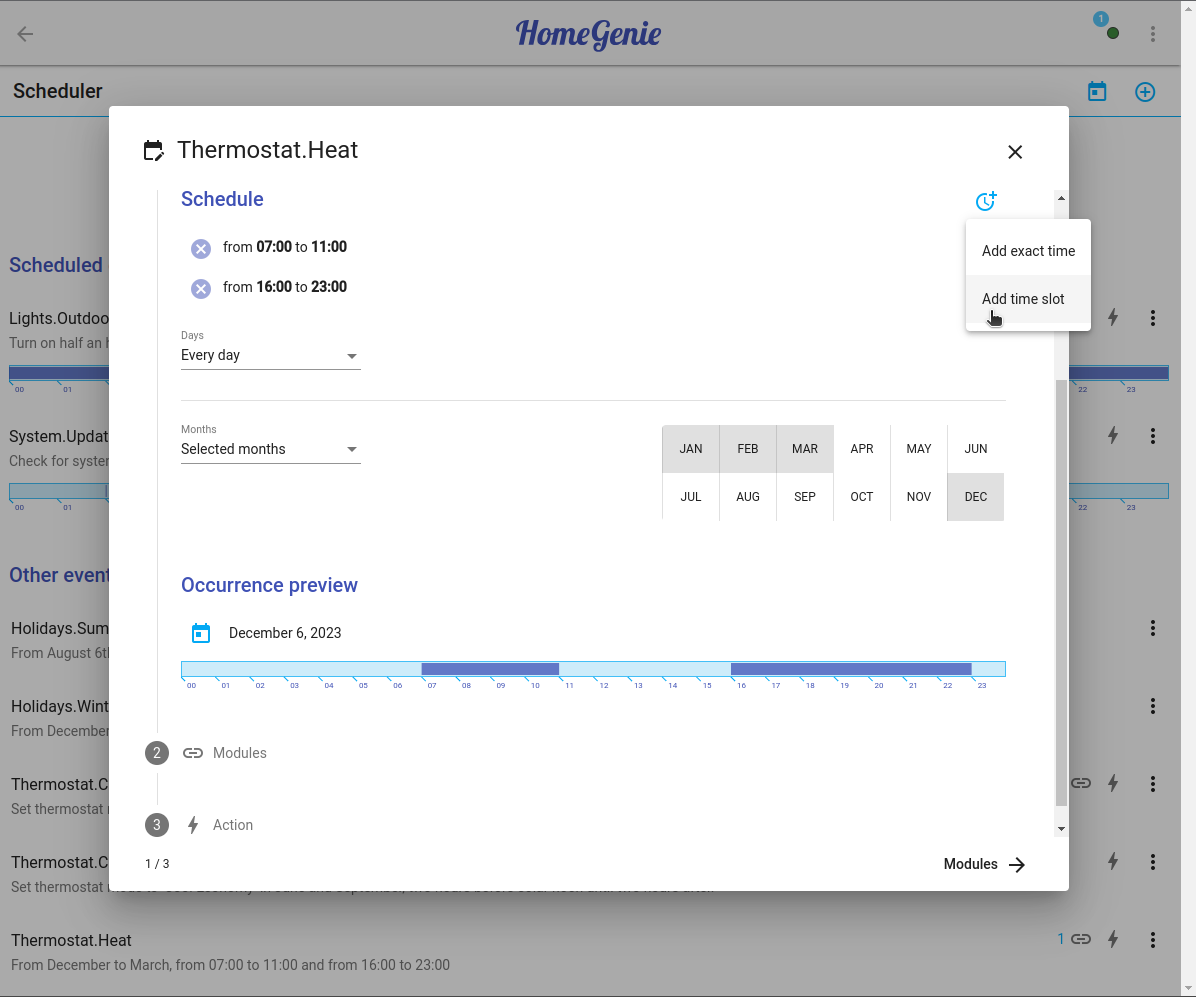
Use a Standard schedule for exact times or time slots. Select the months and days, then add the times or intervals you need with the Add time button.
An exact time gives you a single occurrence. A time slot describes a period during which the event matches each minute; its actions can distinguish the start, interior occurrences, and end of that period.
Right below the schedule, a time bar will show occurrences of the event over 24 hours of the day. You can click the calendar icon to select a different day to preview.
A Date range schedule uses the same time controls as a standard event, but only within the dates you select. It is useful for seasonal routines or temporary changes.
Events of this type use HomeGenie Scheduler's "native" method to describe time occurrences and which is based on the Unix cron format but with some additional features.
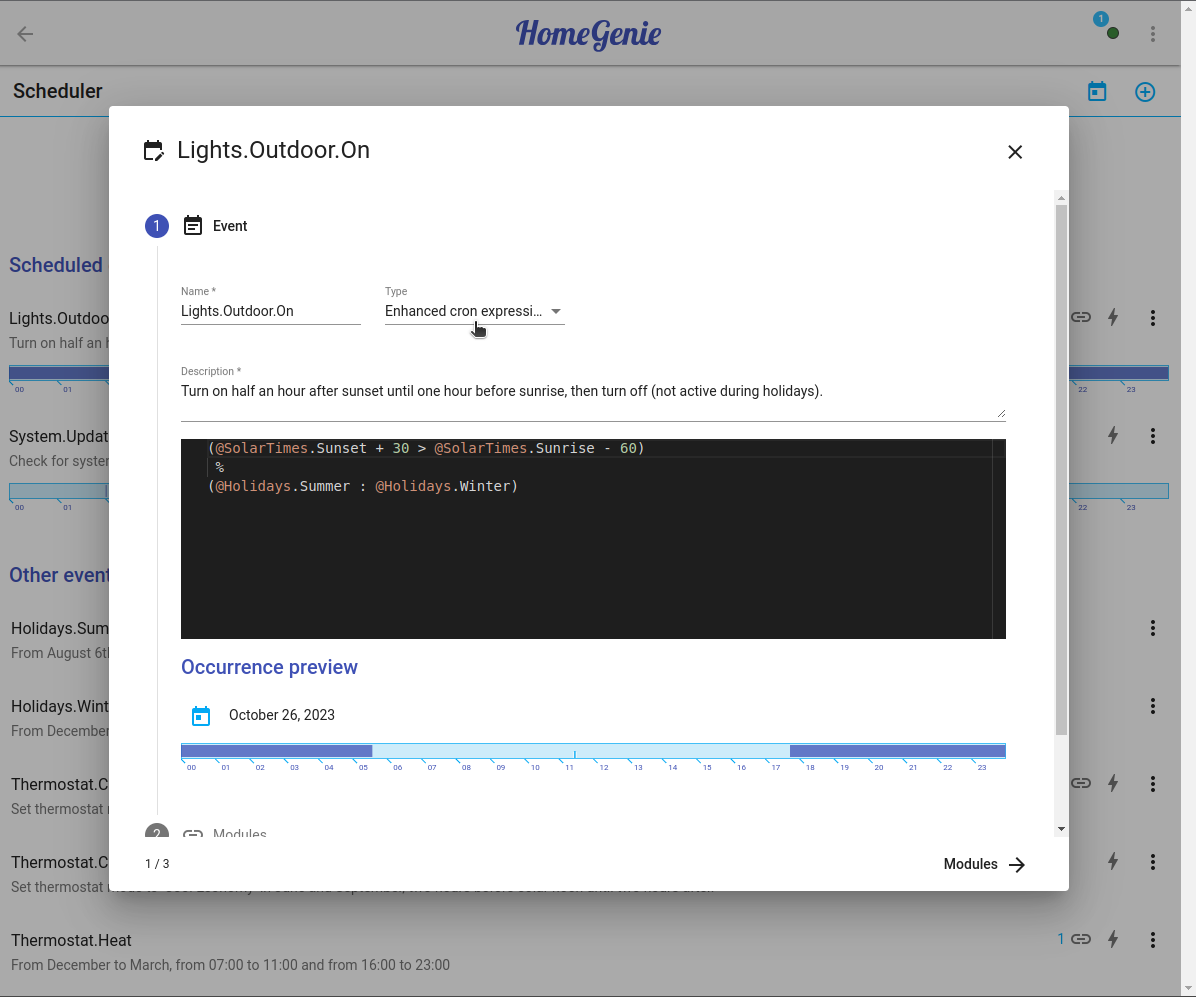
In this case, in fact, the event schedule is defined with a textual expression that can include references to other events and use a special set of operators to describe time intervals and combine them so that even a complex schedule can be defined with a short expression.
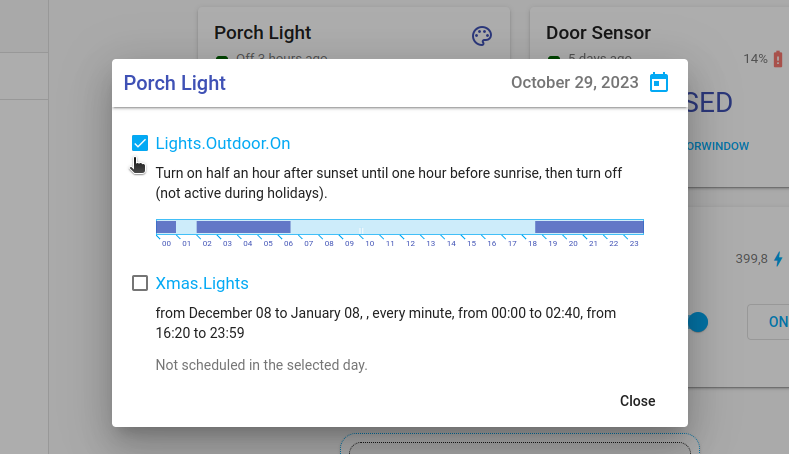
For example, the following expression defines a period from half an hour after sunset to one hour before sunrise, excluding holidays. Associate lights and configure start and end actions if you want the event to switch them on and off.
(@SolarTimes.Sunset + 30 > @SolarTimes.Sunrise - 60)
 %
(@Holidays.Summer : @Holidays.Winter)
The built-in events "SolarTimes.Sunset" and "SolarTimes.Sunrise" return the value of sunrise and sunset times (that will be different from day to day), and considering that the symbol ">" means "until", the first part of the expression in this example basically says "from 30 minutes after sunset until 60 minutes before sunrise".
Since the symbol "%" means "except" and the symbol ":" means "or", the rest of the expression says "except summer/winter holidays". The names Holidays.Summer and Holidays.Winter refer to ordinary events: define and enable them with the dates you want to exclude. You can find further information about cron expressions syntax in the paragraph at the end of this page.
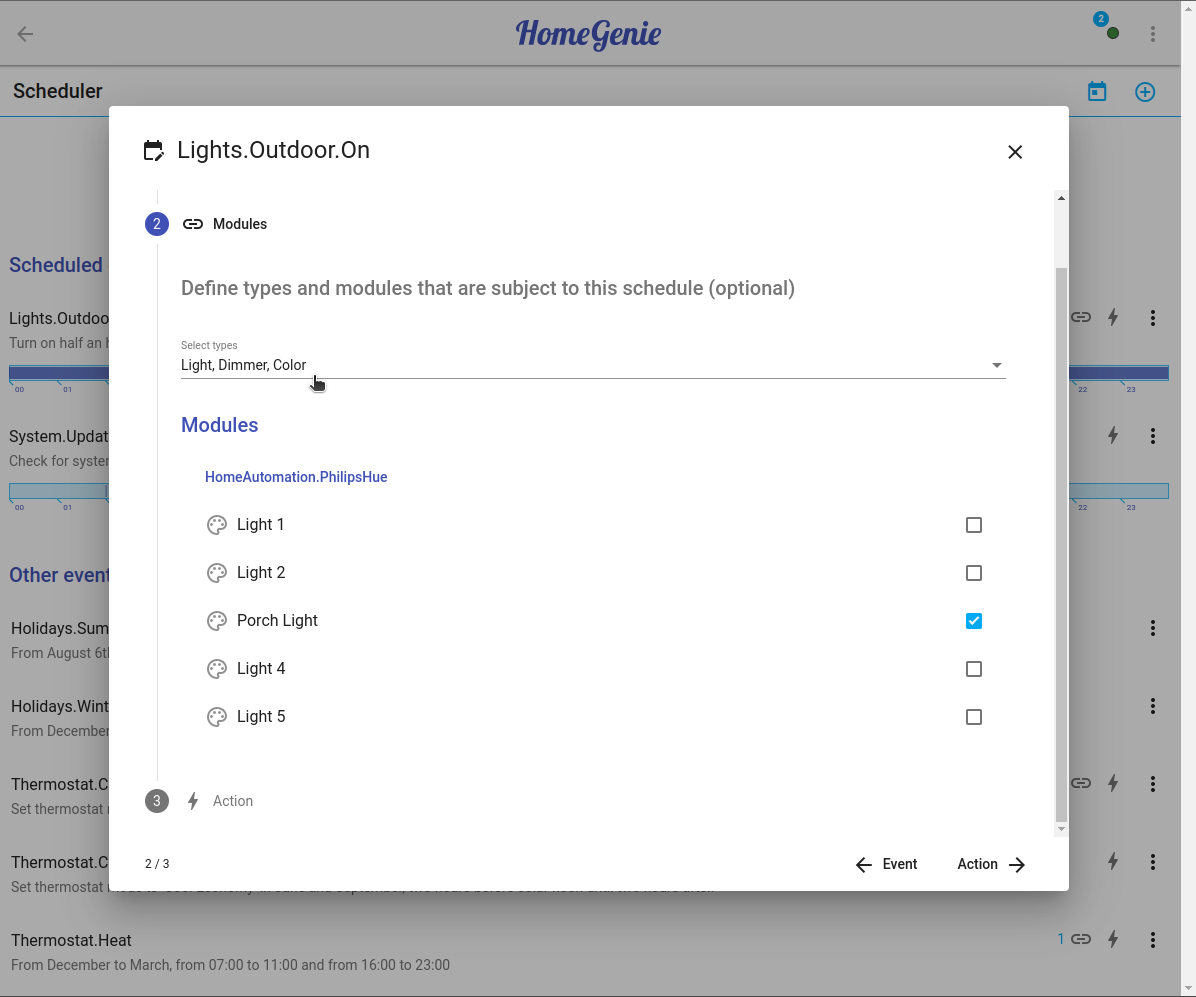
Use Modules to choose the device types an event applies to and associate the modules that its actions should operate. For an outdoor-light routine, you can restrict the event to lights and select the ones outside.
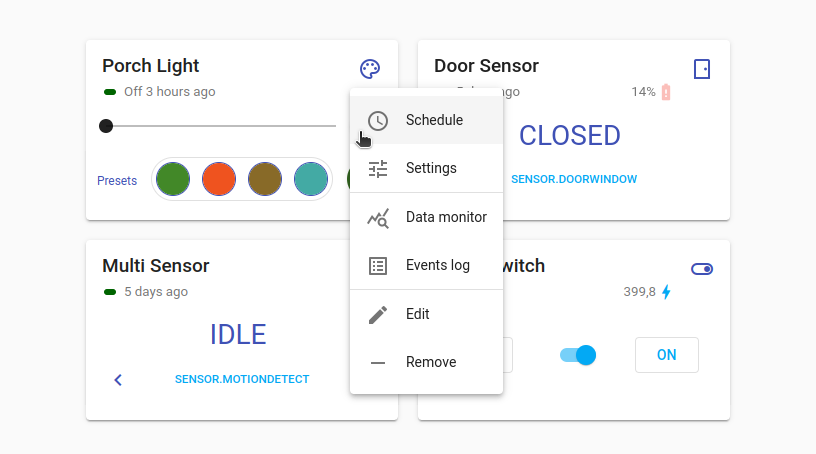
The event can be associated with devices either from the modules list as shown in the above picture, or directly from the widget menu of devices matching selected types.
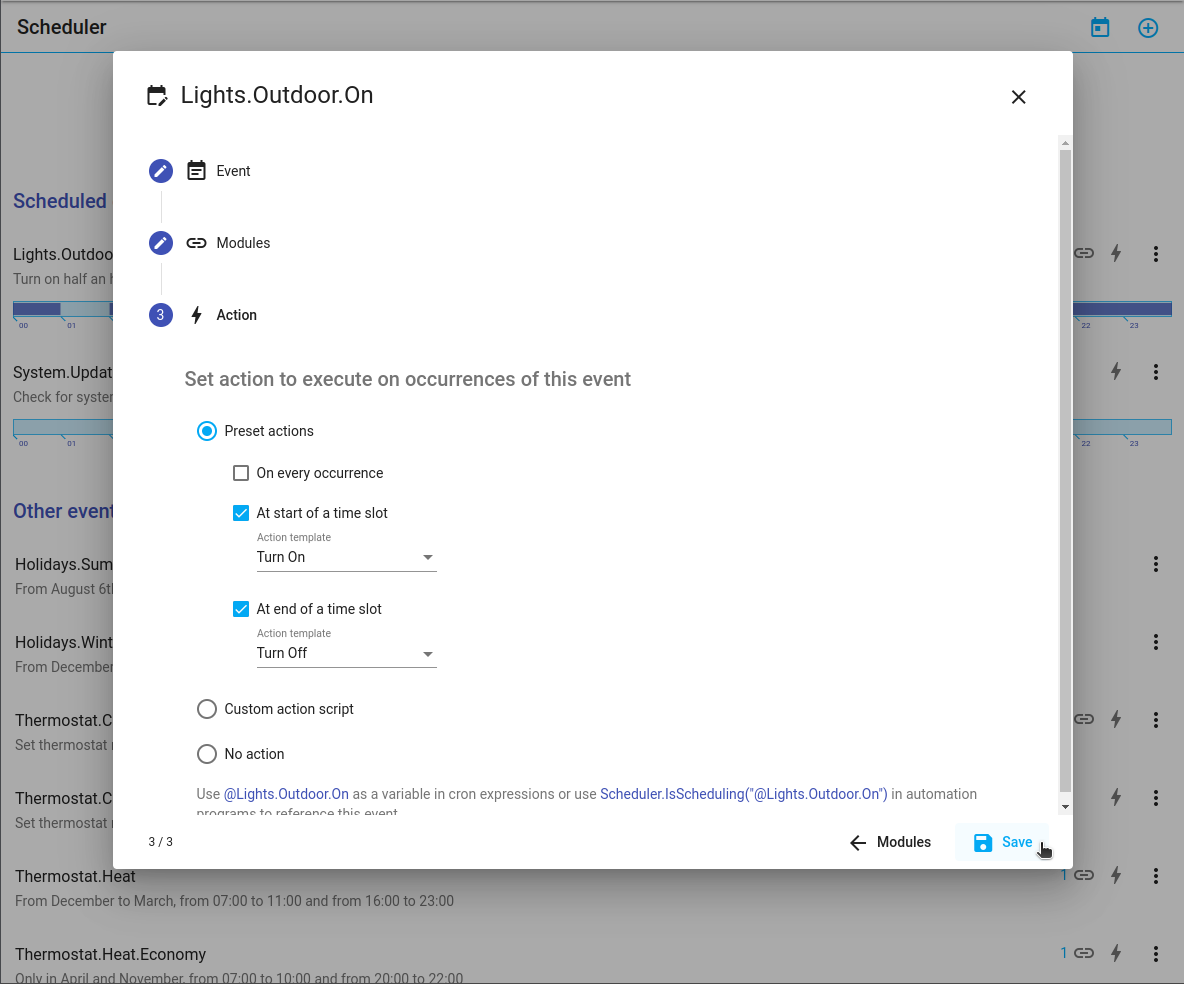
An event can run a sequence of preset commands, a custom JavaScript action, or no action at all. Presets cover common tasks without requiring you to write a script.
Available commands include switching devices on or off, setting light levels and colors, changing thermostat modes, running programs, speaking a message, making a web request, pausing, and sending a task to an AI Genie. Commands that depend on a particular device or service need that device or service to be configured.
Choose where the command sequence belongs:
Start and end sequences are separate from the interior-occurrence sequence. For example, to keep lights on during a slot, put Turn on at its start and Turn off at its end. You do not need to resend the on command every minute.
You can add several commands to each sequence and configure them in order. A pause can separate commands when a device or service needs time between operations.
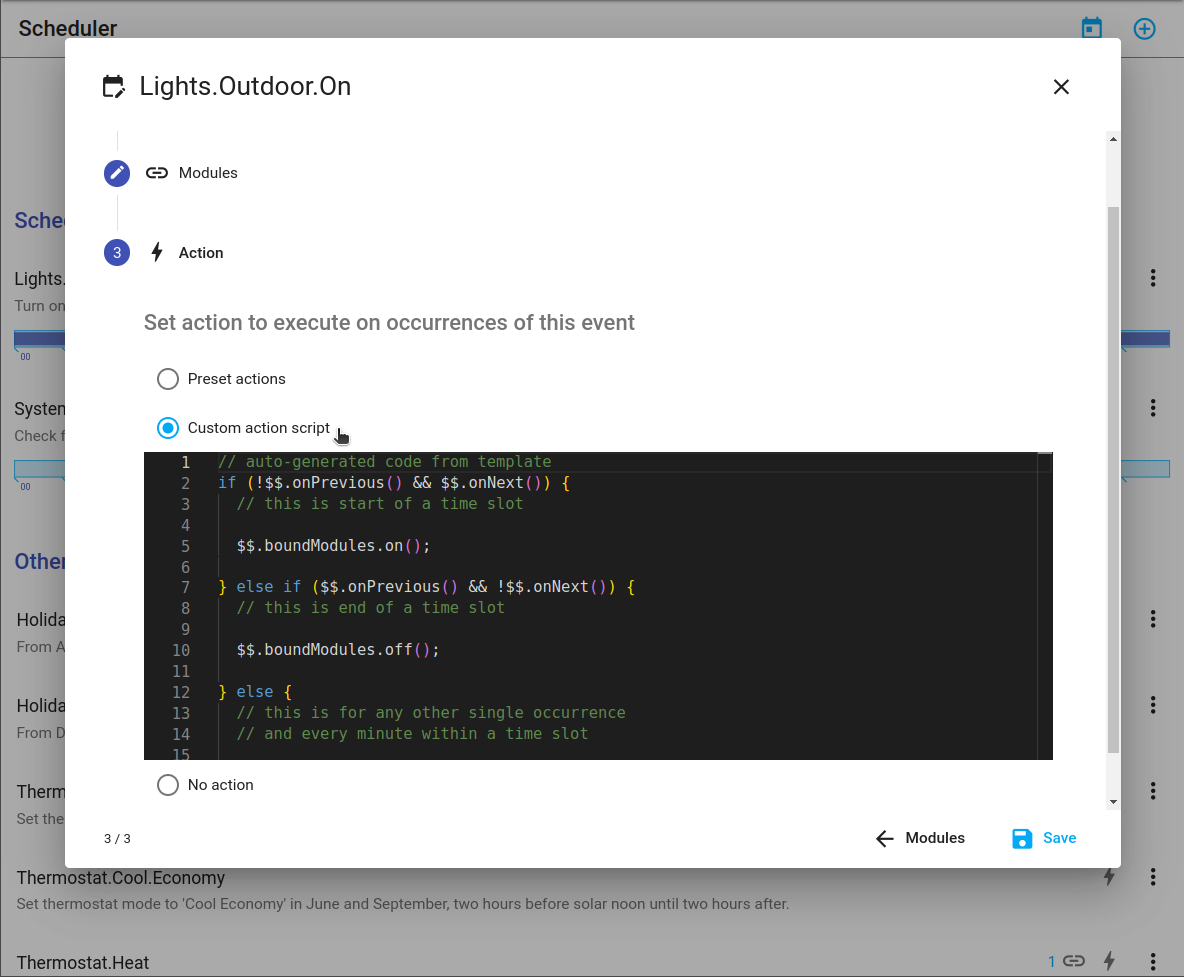
Behind the scenes, preset actions are translated to JavaScript code that can be viewed and modified switching to "Custom action script" mode.
Use Genie Command when you want to describe a task in natural language. First select the AI Genie, then enter the action—for example, “Turn off the exterior lights.”
The selector lists enabled providers that support background execution. Configure the provider before scheduling it: Gemini needs its API key, while Lailama needs a downloaded model that has finished loading. If a selected provider becomes unavailable, the request fails rather than silently switching to another one.
Each command uses that provider's saved Context and Capabilities selections. To control lights, for example, enable device context sharing and device control for the selected Genie. Associating modules with the scheduler event does not itself grant AI permissions or restrict the Genie to those modules; name the intended devices in the request.
The scheduler submits the task through the common Request.Execute service and waits for completion before proceeding to the next command. Background requests do not add messages to the provider's interactive chat. The generated command has a ten-minute waiting limit; an error, cancellation, or incomplete result stops that sequence with an error.
Disabling an event stops its active script and requests cancellation of an AI task it is waiting for. Cancellation does not undo actions already performed. Check the execution results before retrying a task whose effects are uncertain.
For a straightforward, fixed device operation, a regular preset is usually sufficient. A Genie command is useful when the task needs natural-language interpretation or decisions based on the available context. It invokes the model each time it runs, so allow for inference time and, for cloud providers, connectivity and API usage.
See Cloud AI and Local AI for provider setup and permissions.
Choose Custom action script when you want to write the event's JavaScript yourself. Preset actions also generate JavaScript, which you can inspect and adapt in this mode.
HomeGenie's helper objects are available through $$. These let the script select modules, call APIs, run programs, and use other configured services:
$$.api.call(command, data) - call a HomeGenie API with optional request data.$$.modules - ModulesHelper$$.program - ProgramHelper$$.settings - SettingsHelper$$.net - NetHelper$$.serial - SerialHelper$$.tcp - TcpHelper$$.udp - UdpHelper$$.mqtt - MqttHelper$$.knx - KnxHelper$$.scheduler - SchedulerHelperIn addition to the above, the script can use the following objects and methods:
$$.boundModules: a ModulesHelper instance containing modules associated with of the event. For example to switch on all associated modules we'll use: $$.boundModules.on().$$.onPrevious(): boolean value indicating if the event was scheduled in the previous minute.$$.onNext(): boolean value indicating if the event will be also scheduled in the next minute.$$.data(k[,v]): read or write event-local data shared across occurrences. This working data is held in memory; use persistent storage if it must survive a server restart.$$.onUpdate(function(m,p)): method to set a handler for listening to modules events. Once registered the handler will be called even if the event is not scheduled.$$.pause(seconds): pause the script for the given amount of time.For example, a custom action can switch its associated modules only at the boundaries of a time slot:
if (!$$.onPrevious() && $$.onNext()) {
  $$.boundModules.on();
} else if ($$.onPrevious() && !$$.onNext()) {
  $$.boundModules.off();
}
This example is for a continuous time slot. An isolated scheduled time has neither a previous nor a next occurrence, so it requires its own action if you want it to do something.
A cron expression describes recurring times with five fields, separated by spaces. There is no seconds field:
minute hour day-of-month month day-of-weekThe fields represent:
Individual sub-expressions can contain ranges (e.g. 8-22) and lists (e.g. 5,10,30,45).
Wild-cards (the '*' character) can be used to say “every” possible value of this field. For example, * in the Month field means “every month”. A '*' in the Day-Of-Week field would therefore obviously mean “every day of the week”.
All fields have a set of valid values that can be specified:
The '/' character can be used to specify increments to values. For example, if you put '0/15' in the Minutes field, it means 'every 15th minute of the hour, starting at minute zero'. If you used '3/20' in the Minutes field, it would mean 'every 20th minute of the hour, starting at minute three' – or in other words it is the same as specifying '3,23,43' in the Minutes field.
Example 1 Every 5 minutes
0/5 * * * *
Example 2 Every even minute
*/2 * * * *
Example 3 Every odd minute
1-59/2 * * * *
Example 4 Every 5 minutes, Weekdays from 8am-5pm.
*/5 8-16 * * 1-5
Cron expressions can also be grouped using parenthesis and combined using the following operators:
; AND: OR> UNTIL (time range, 'from' > 'to')% EXCEPTExample 5 From 11:20PM to 3:15AM
(20 23 * * *) > (15 3 * * *)
Example 6 From 11:20PM to 3:15AM except in May(5) and September(9)
((20 23 * * *) > (15 3 * * *)) % (* * * 5,9 *)
Example 7 At 11:20PM or 3:15AM in January(1) and December(12) every Sunday(0) and Tuesday(2)
((20 23 * * *) : (15 3 * * *)) ; (* * * 1,12 0,2)
An event can also be recalled in a cron expression by using the @ symbol followed by the name of the event.
Example 8 From 11:20PM to 3:15AM only during winter holidays
((20 23 * * *) > (15 3 * * *)) ; @Holidays.Winter
When the referenced event is an exact time, sum and subtract operator can be used to add or subtract certain amount of minutes to the recalled event. See the next example.
Built-in solar events provide sunrise, sunset, and solar noon for the configured location. Check HomeGenie's location settings if these times do not match your area:
Example 9 From half an hour before sunrise to 45 minutes after sunset only during summer holidays
(@SolarTimes.Sunrise - 30 > @SolarTimes.Sunset + 45) ; @Holidays.Summer