Standard
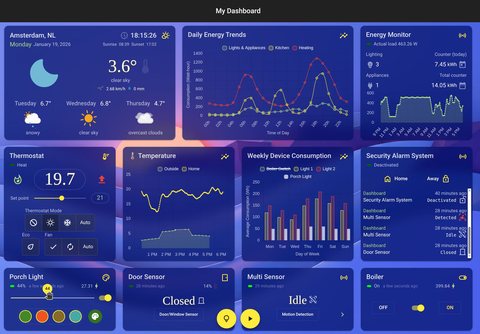
Open media

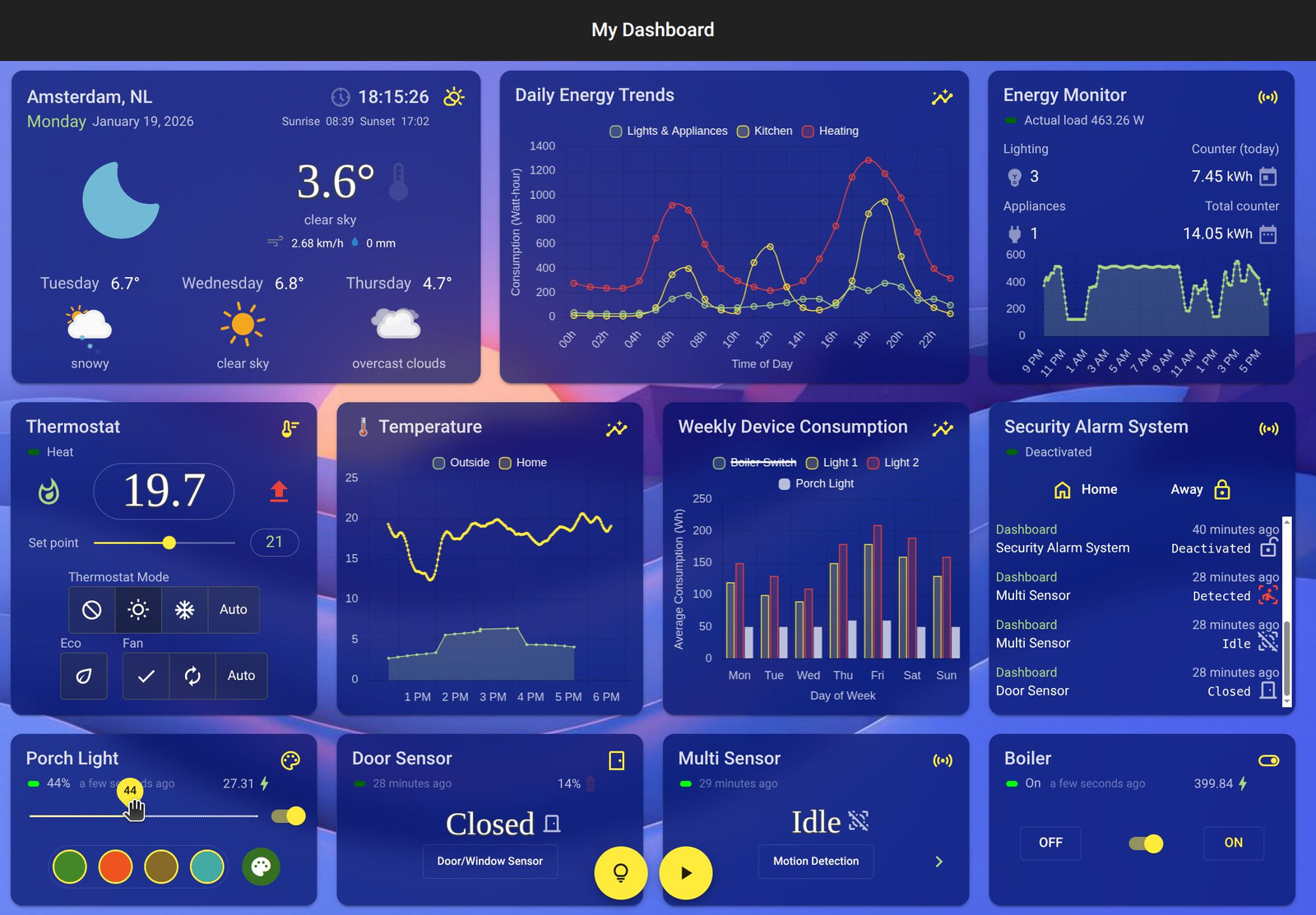
A dashboard brings your devices, controls, and charts together on one page. You can create dedicated dashboards for each room or gather your most frequently used controls onto a single main screen.
HomeGenie offers two layout types:
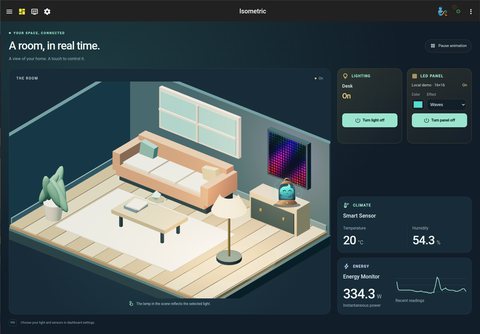
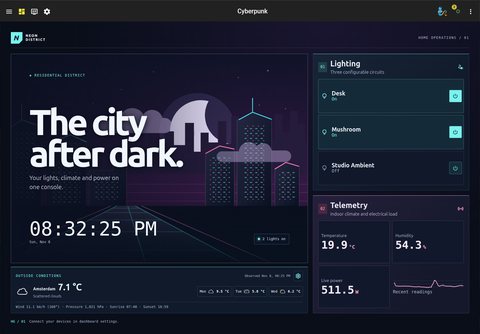
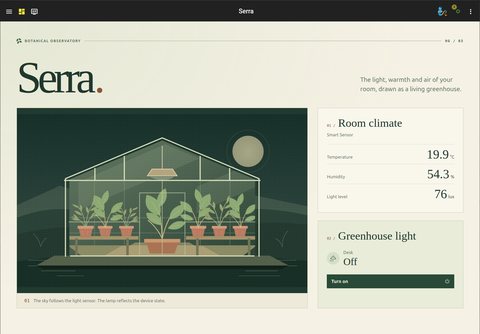
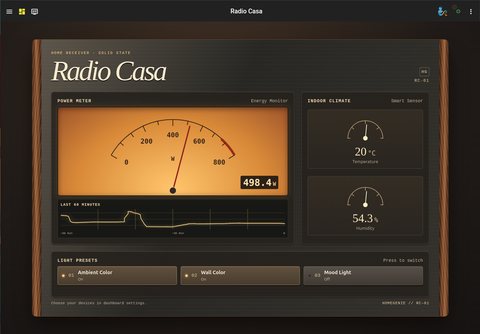
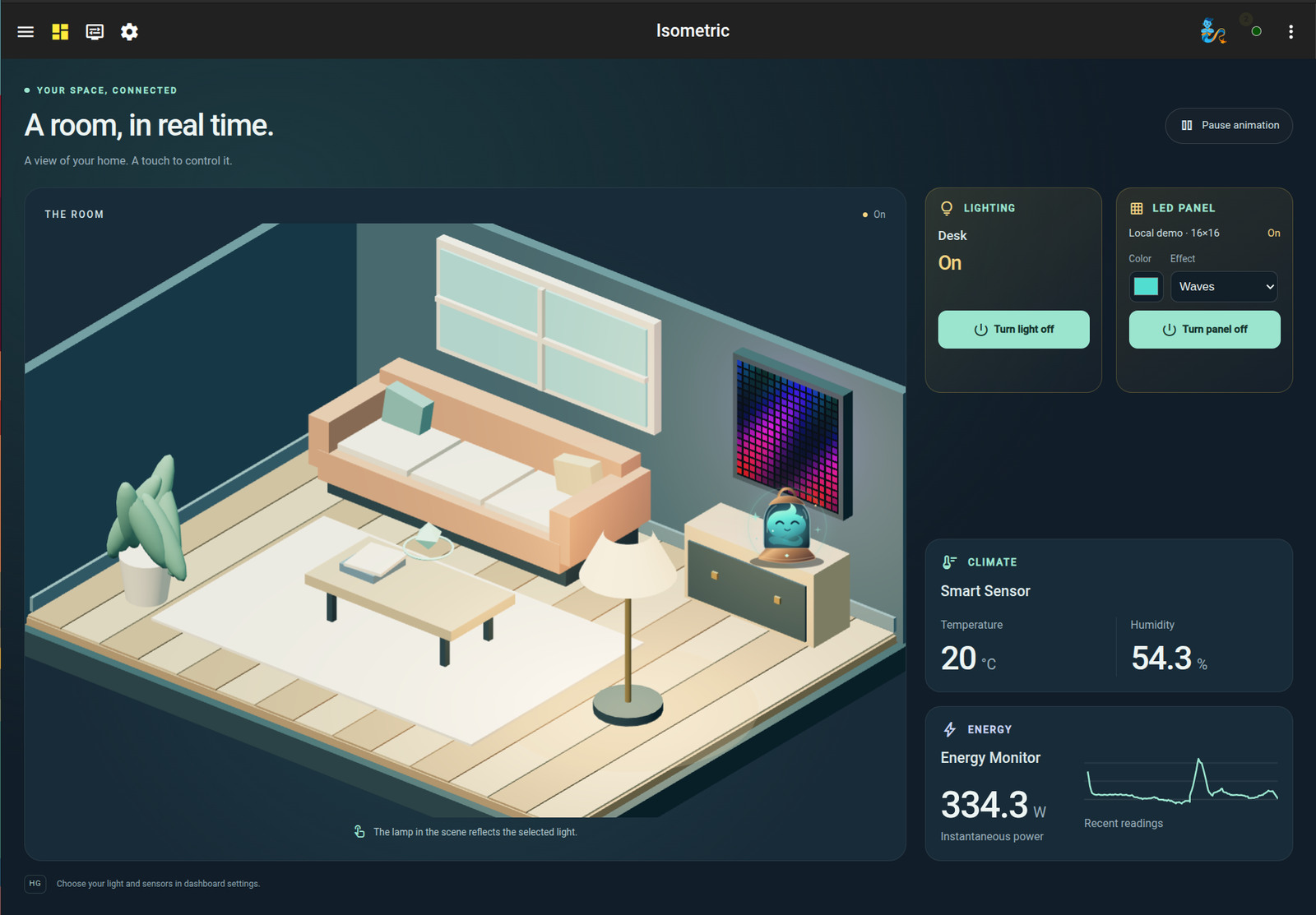
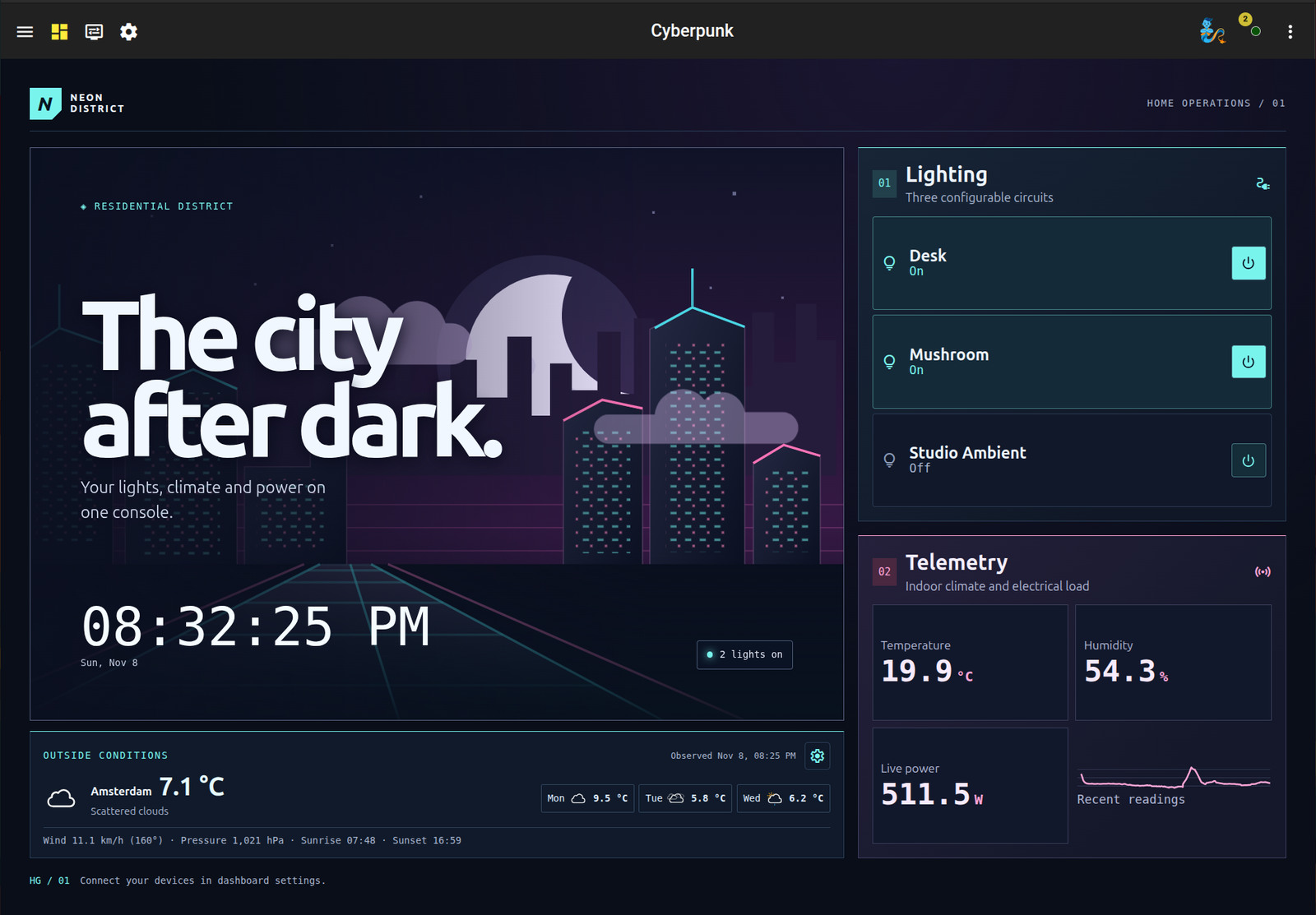
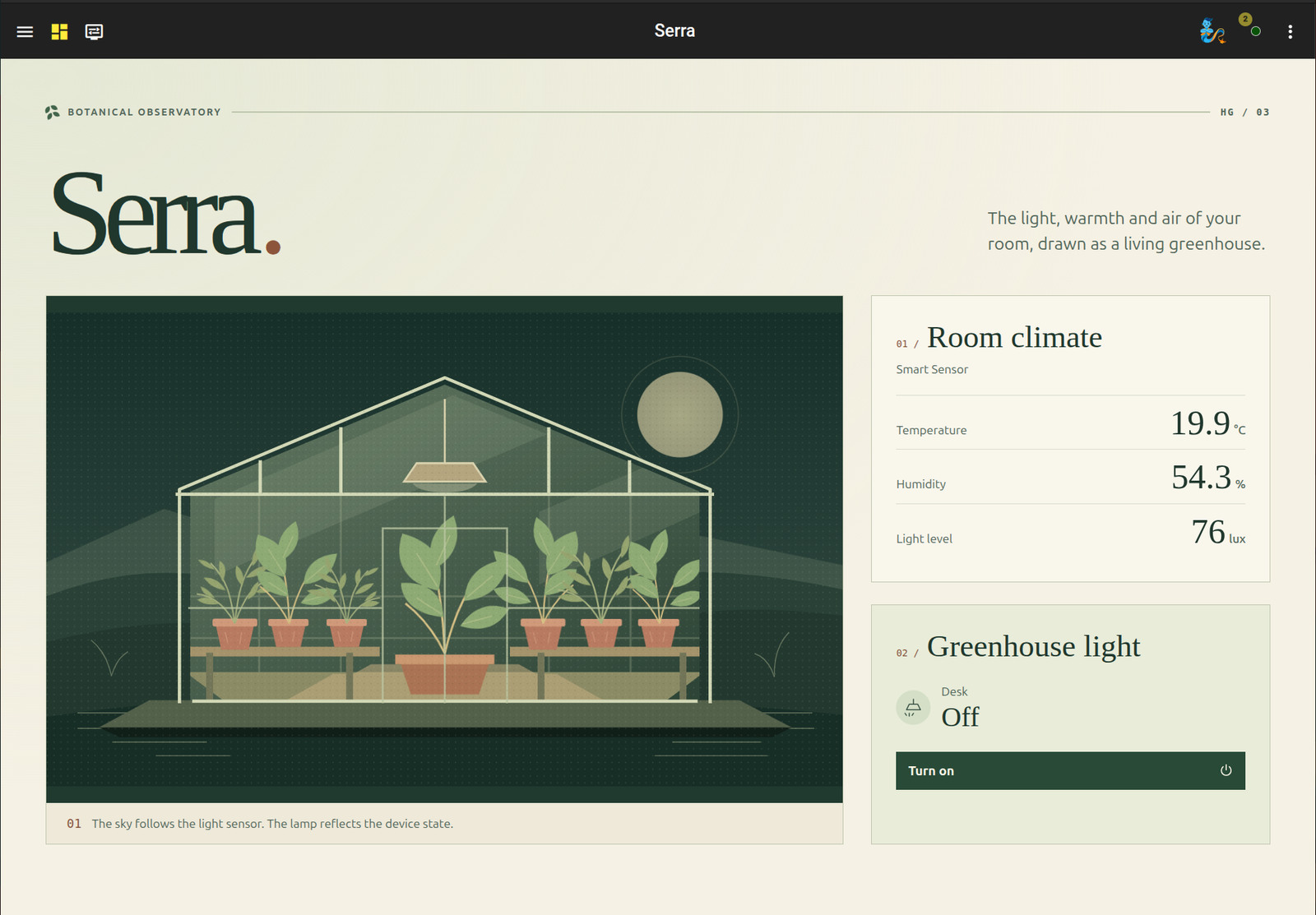
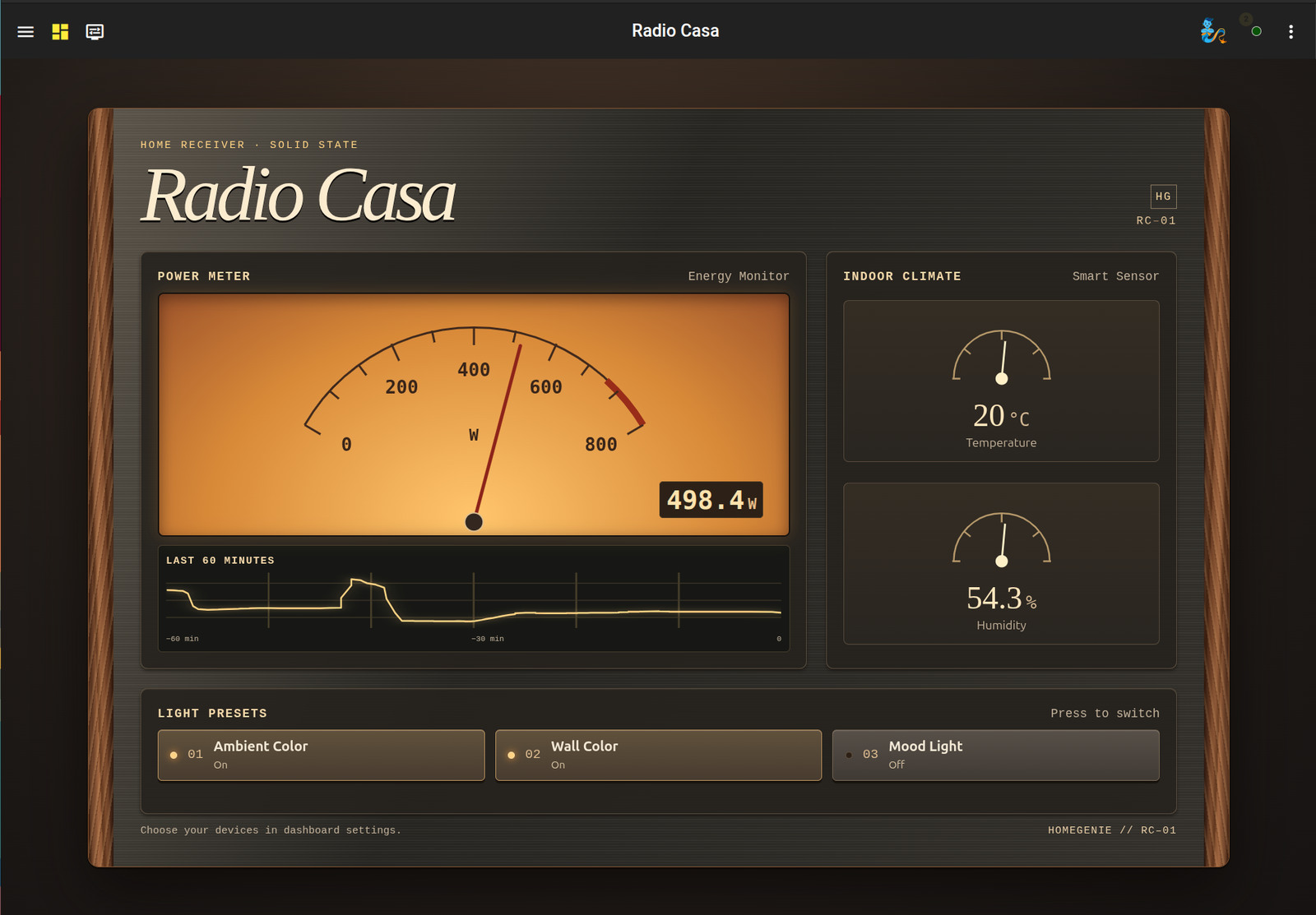
The four custom themes in the gallery below were generated using AI.
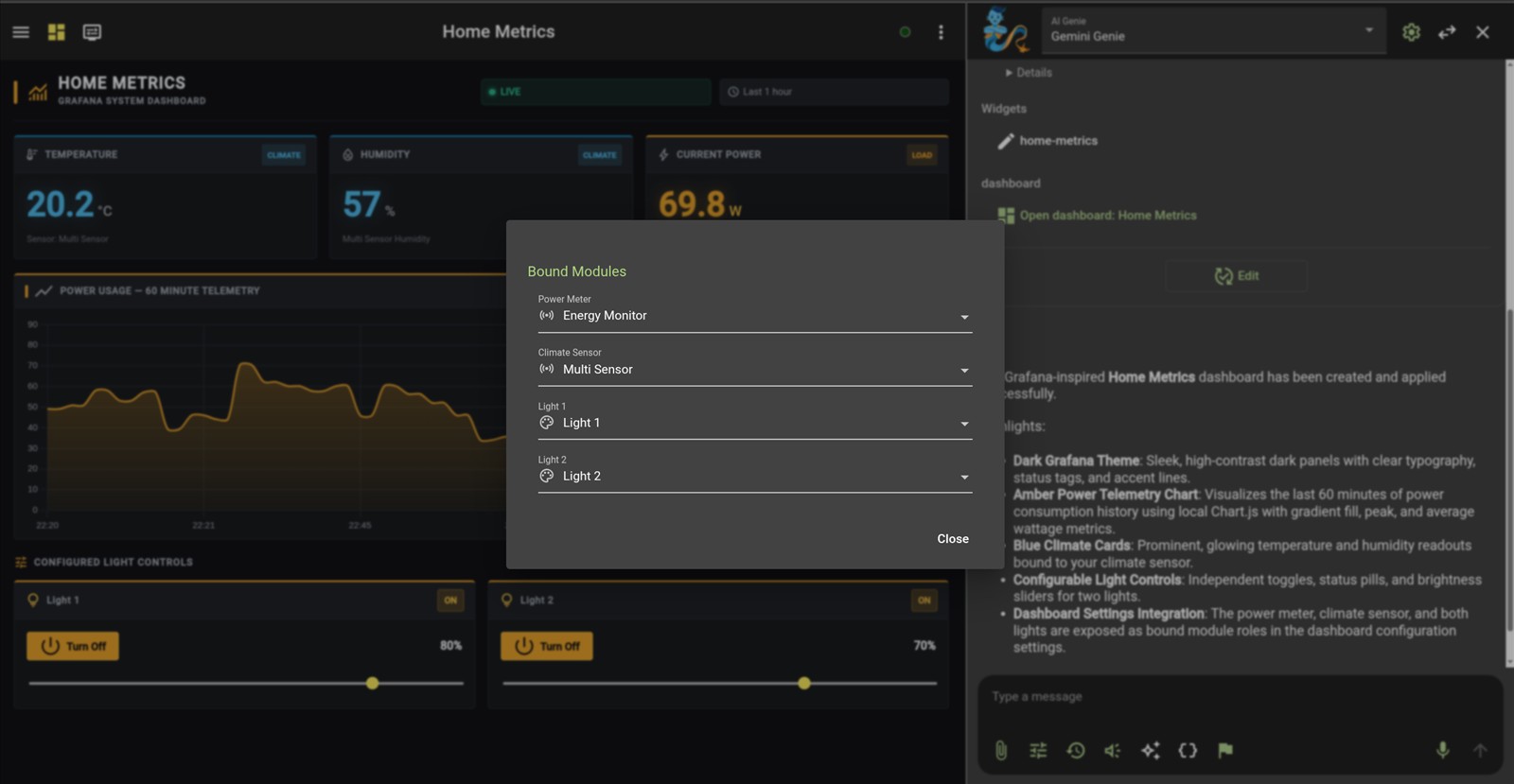
Open the Dashboard menu and select Add new dashboard. Enter a name, set Layout to Custom Widget in the preferences dialog, and select a theme from the list:
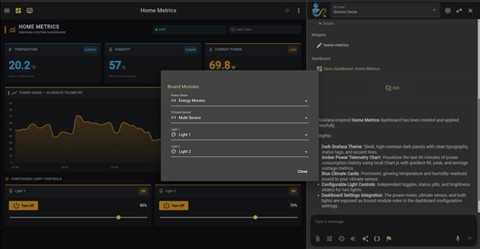
Use the Configure button in the dashboard toolbar to select which devices the theme displays and controls. Some themes also provide a gear icon for adjusting visual settings such as panel titles and animations. If these configuration options do not appear after an update, install the HomeGenie Themes package from the Settings page.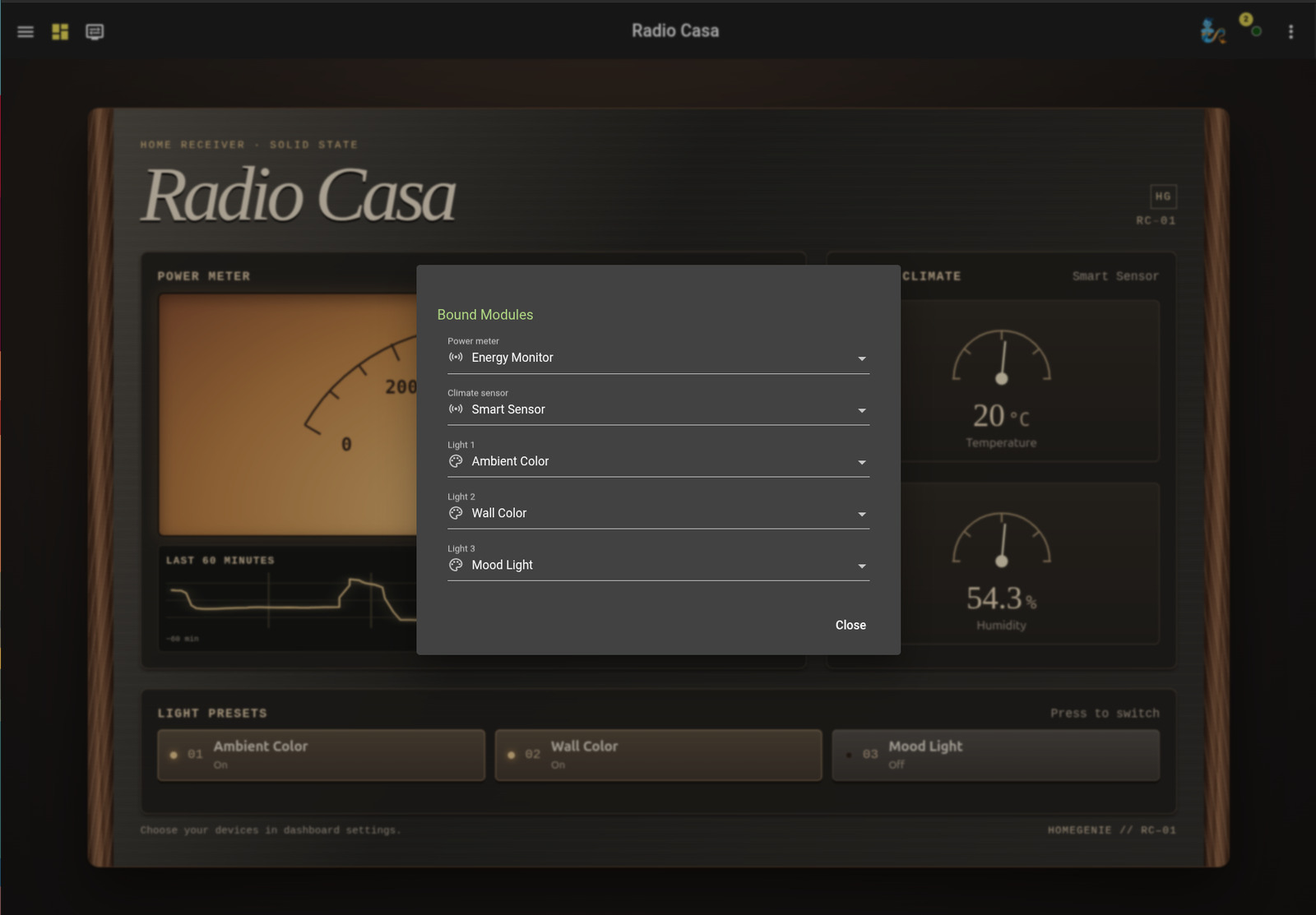
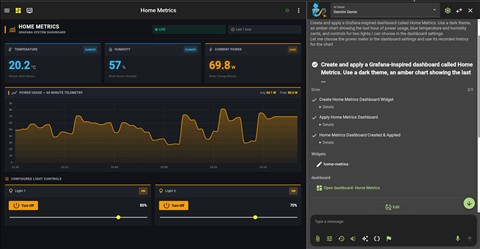
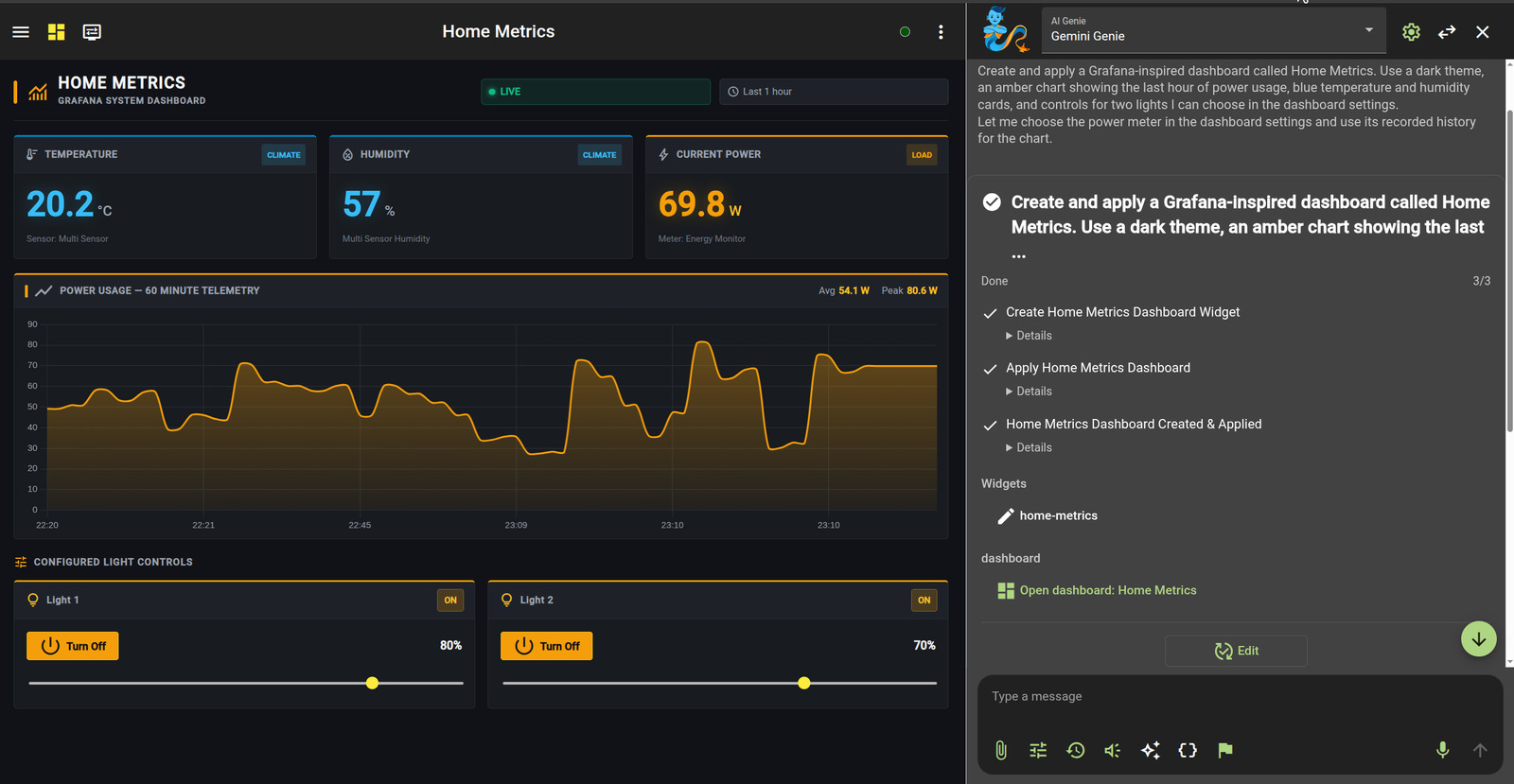
Open the AI chat and select Gemini Genie. Click the flag icon to enable the Widget Goal, then describe the dashboard you want. Ask Gemini to apply the generated dashboard and assign it the name you want to see in HomeGenie:
Create and apply a Grafana-inspired dashboard called Home Metrics. Use a dark theme, an amber chart showing the last hour of power usage, blue temperature and humidity cards, and controls for two lights I can choose in the dashboard settings. Let me choose the power meter in the dashboard settings and use its recorded history for the chart.
Home Metrics, created with Gemini Genie
You can follow each step in the chat and click Open dashboard once generation is complete. To adjust the result, select Edit on the goal and describe what you want to update.
Learn how to set up Gemini Genie or build your own widgets.
Use the Dashboard menu to add individual widgets and charts. To rearrange items, press and hold any widget to enter edit mode, then drag it to your desired position.
Add a Section Label widget to organize related controls into groups. This also provides a master switch to turn all lights or appliances in that section on or off at once.
Open the menu in the upper-right corner of any widget to change its settings or remove it from the dashboard. Some specialized widgets also provide extra device controls directly within this menu.
Open the side navigation menu and choose any dashboard from the list. Click the Pin button at the bottom of the sidebar to keep the navigation list permanently open.